Use the free tools
You want to check timing, shape an opening, plan shots or prepare a caption without an account. Copy or download your work before leaving.
Choose a free toolInside the workflow
Explore today’s connected workspace, then follow the captured sessions and download actual finished files.
The current workspace
Plan a block in Week, continue the script in Studio, choose a keeper in Gallery and finish its publishing kit. Select a tool to see where it fits, then open your workspace.
See your project pipeline, capture a new idea and return to work already in progress.
Keep the project you are working on in view as you move between the tools.
Open Flight DeckCaptured videos and screenshots below date from September 2026. They demonstrate the core workflow in the earlier interface; the live app now uses navy and cyan.
WATCH THE WORKFLOW · 3 MINUTES
Follow a cleaning-business idea through the actual workspace—with Brody guiding the way. Watch it once, or jump to the part you need.
Recorded September 2026. Today’s workspace also includes Flight Deck, a weekly planner and Gallery. The video follows the core workflow in the earlier interface. Explore the current tools →
AI presenter and ElevenLabs voice. Real app screens and rehearsal footage, captured September 28, 2026; recording controls use a labeled demonstration camera. Videos stay on your device. You complete social uploads yourself.
One useful idea becomes a script, a reviewed take, a cover and a caption.
Open Ideas, choose New idea, add your audience’s question and the facts you want to explain. Save and review the editable outline.
In Record, choose a saved script or write your own. Keep it focused on one answer. Account drafts save after you pause typing.
Rehearse camera-free, adjust pace and text size, then enable camera and microphone when ready. Stop and review your take.
Name the recording and session. Move to next recording saves the video and script in this browser, then opens a blank script and live camera. Use New take and confirm Discard to throw a take away. Download important recordings as a backup.
Open Finish for the same project. Refine the cover and caption, download your cover, then choose Save & prepare publishing kit and Continue to Publish.
Save kit saves your work without opening tabs or posting. Copy a caption, open the platform, check the account and upload there. Return to mark the post published and add its link.
Open the guide and ask a question in your own words. Start with one post, save the take, then make the next.
A SESSION YOU CAN FOLLOW
A coffee tip becomes a spoken draft, a rehearsal and a finished cover. Follow the actual interface, then download the same working pack and make it yours.
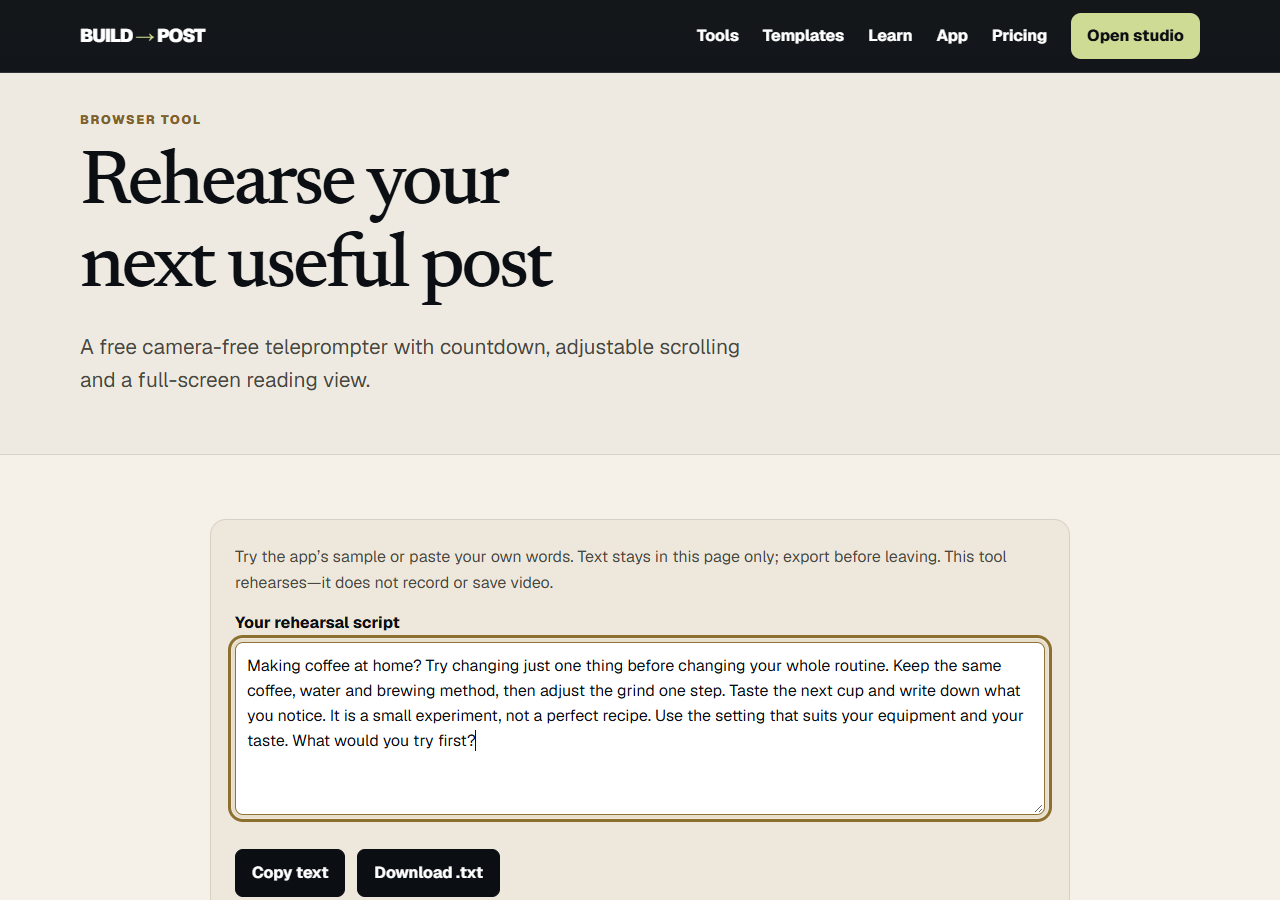
01 / Write
We write a short coffee-tip script, then paste it into the live public teleprompter. The words are supplied by us—not an automatic generation.
Try the public teleprompter →Write and transfer the text yourself. Recording your own video is a separate Studio step.
TAKE THE WORK WITH YOU
A script, a three-shot plan, a caption, a reusable cover recipe and the exported PNG. Adapt the example to your own work.
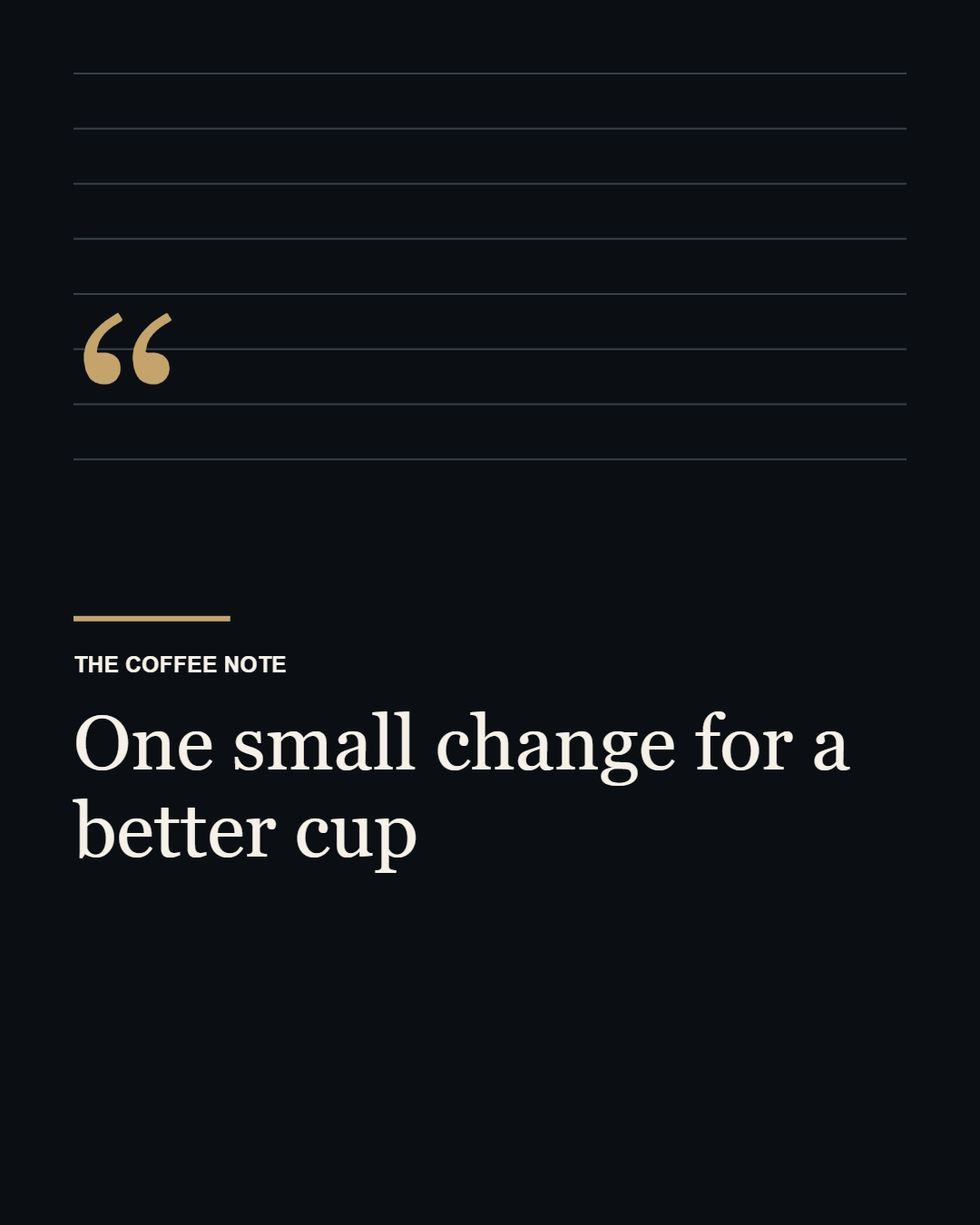
Recorded September 28, 2026 from the production Finish Desk component in an isolated verification session. It shows real editing and exports, not account saving or a customer result.
Public-tool screenshots captured from the live website. Cover screenshots and video captured from the actual app component during verification. Demonstration words, no customer result. Evidence standard.
MADE FOR THE WORK IN FRONT OF YOU
A busy café. A first appointment. A small everyday improvement. Choose a situation and see real tools working with its words.
Café & food
“What do you need before ordering coffee for a group?”
A café turns a repeat ordering question into a helpful checklist, without inventing offers or availability.
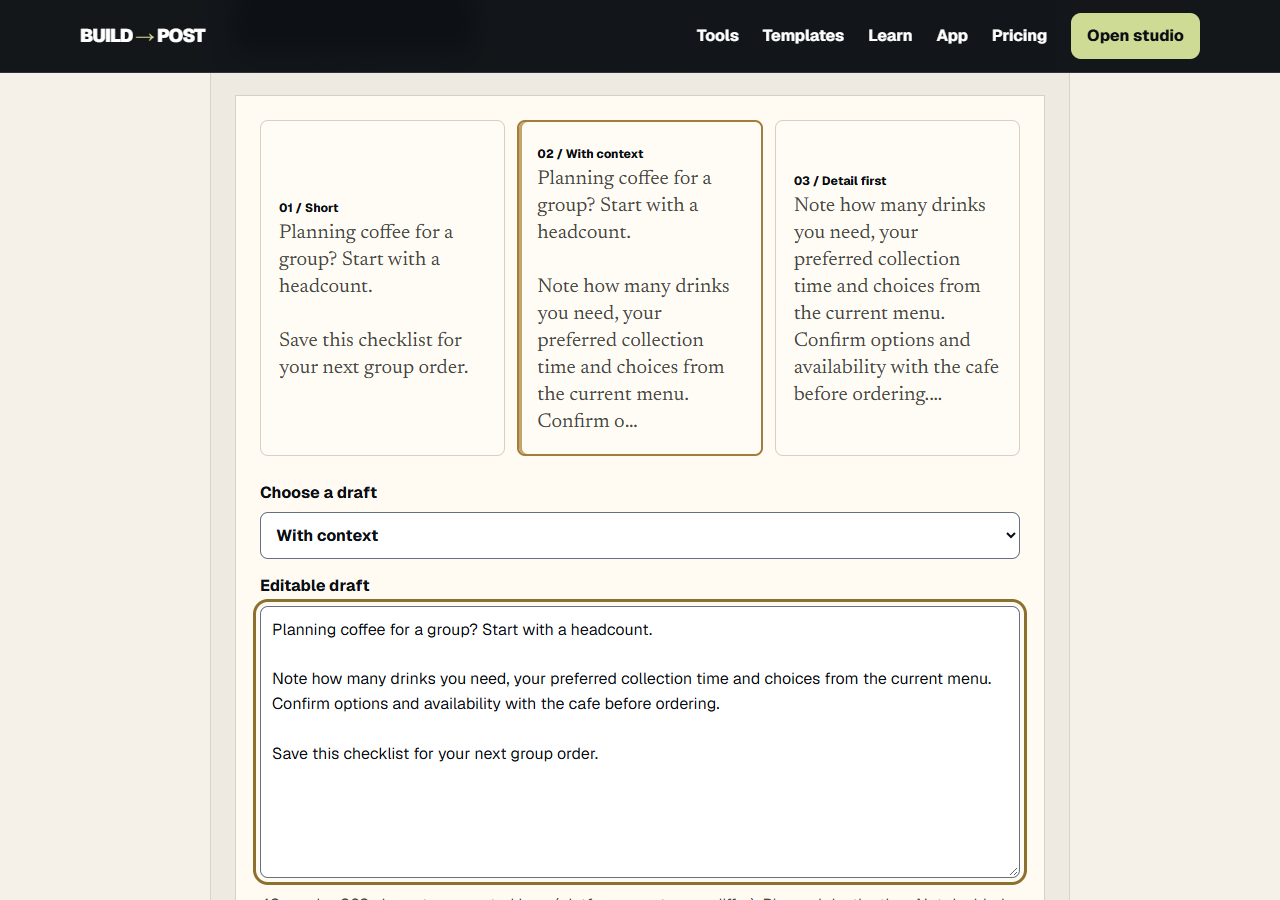
Planning coffee for a group? Start with a headcount. Note how many drinks you need, your preferred collection time and choices from the current menu. Confirm options and availability with the cafe before ordering. Save this checklist for your next group order.
Actual tools, demonstration inputs—not customer results or a live data feed. Text is transferred and publishing completed manually.
Selected: Café & food. Make the group order easier.NEW IN THE STUDIO / FINISH DESK
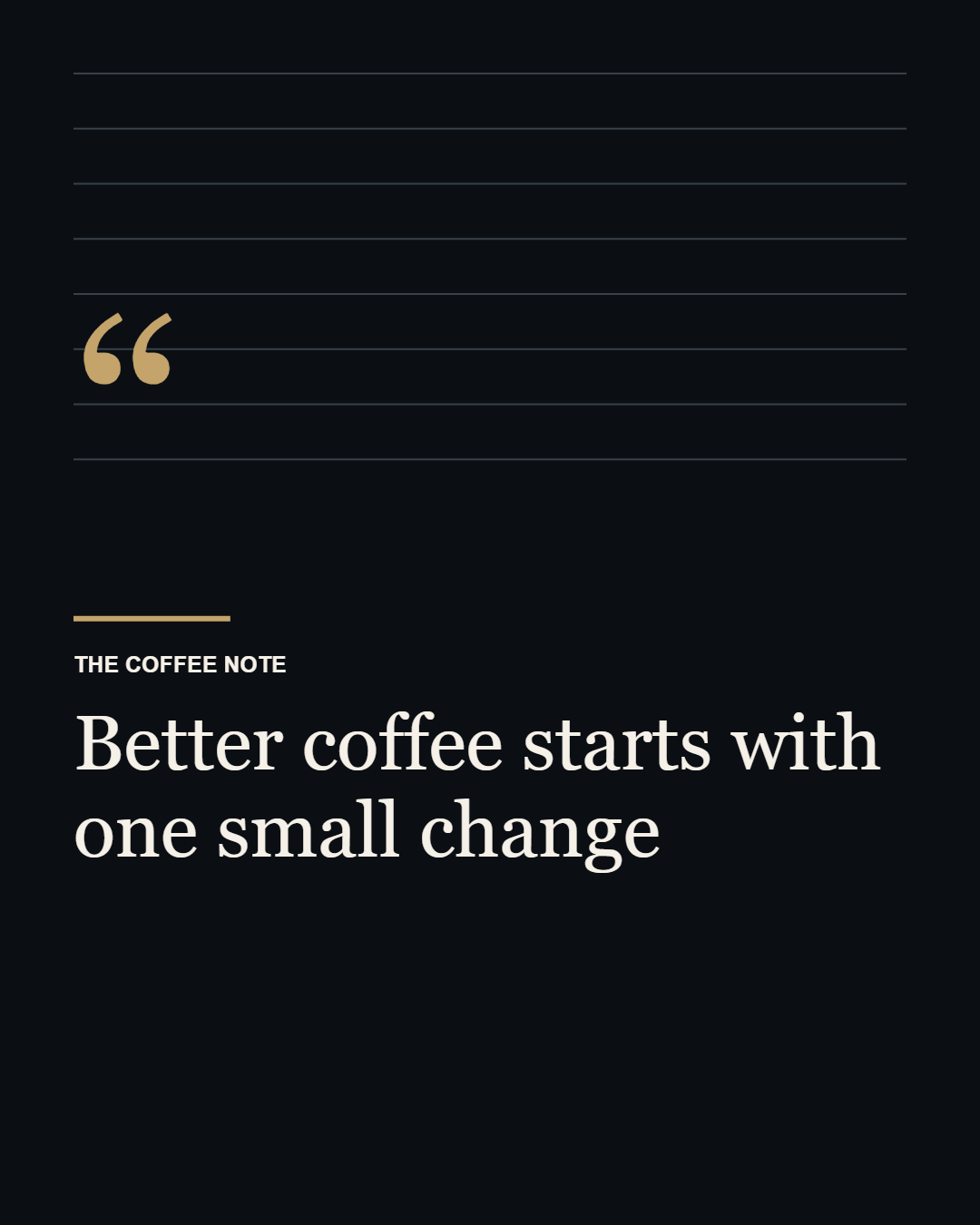
Give the post you made a cover of its own. Choose a layout, bring your headline and optional photo, then download an actual image—not just a preview.
A quiet serif headline and a brass rule. A repeatable look for thoughtful answers.
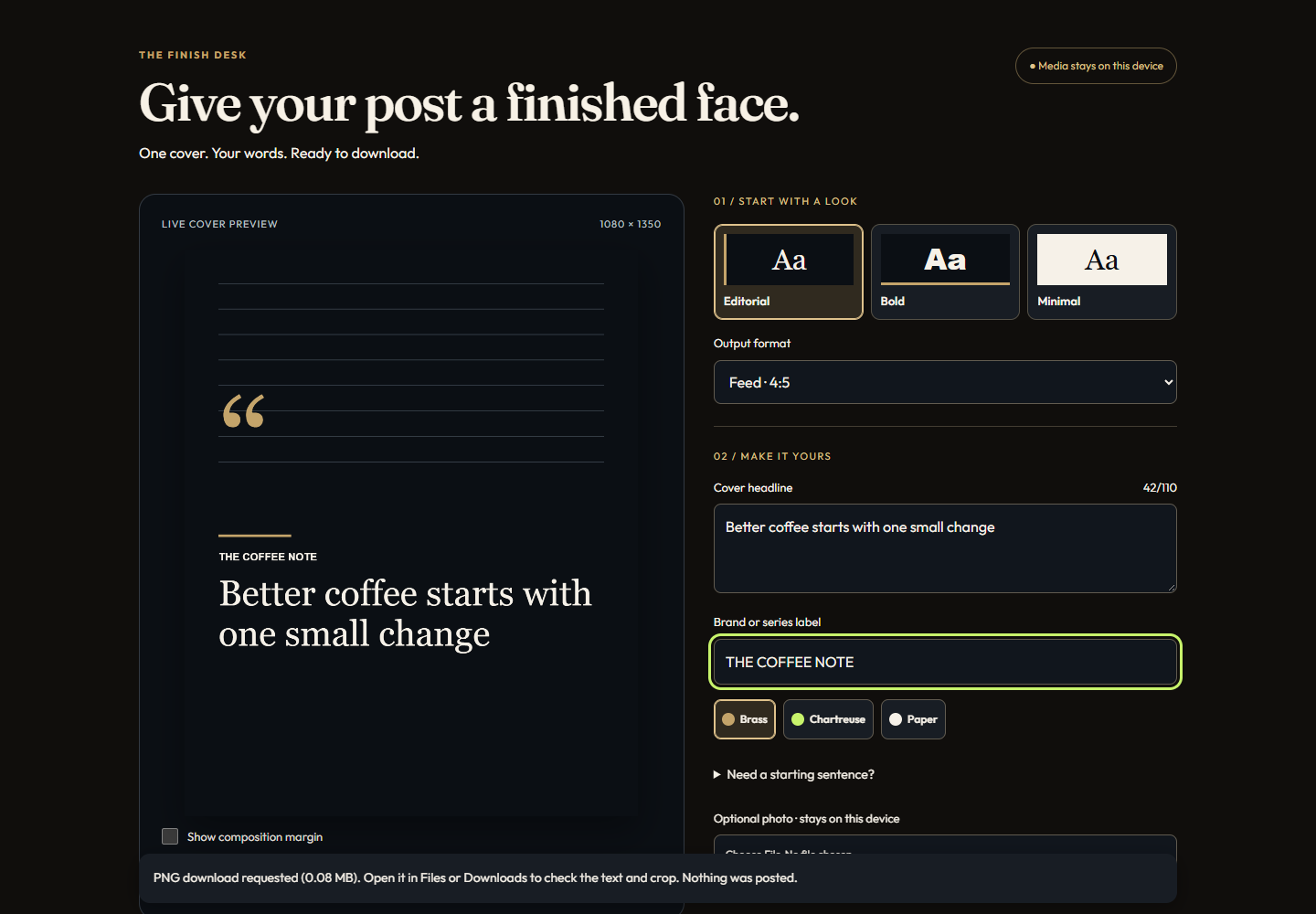
Actual working component captured during release verification. Café teaching example; not a customer result. Save text and settings to your account or download a portable recipe. Keep your original photo separately.
Recorded September 28, 2026 from the production Finish Desk component in an isolated verification session. It shows real editing and exports, not account saving or a customer result.
FIVE REASONS TO MAKE IT YOUR STUDIO
The value is in the work staying connected: your words, your rehearsal, your chosen take and the next step.
Available in early access. Paid subscriptions are not on sale yet.
Compare access and future plans →Capture an idea in Flight Deck, plan its next block in Week and carry the same project into your script workspace. Keep the wording beside the reading frame as you rehearse.
Put it to workFor a local service business: keep a first-booking checklist and an answer to a common customer question as separate scripts, then choose the one you want to record.
Open your script workspace →Account required. Wait for the draft-save confirmation before switching or leaving.
Read your script out loud with a reading guide, adjustable pace and text size. Rehearse without enabling the camera, then decide when you are ready.
Put it to workFor a business owner: say a customer answer aloud, shorten the awkward sentence, and try it again before filming.
Try camera-free rehearsal →Try the public teleprompter without an account. It does not record or save your text.
Name your recording and session. Move to next recording saves the video and script locally before opening the next script. Find the saved take in Gallery and compare project-linked takes to choose a keeper.
Put it to workTry two different openings. Keep the version that sounds like you, rather than treating your first attempt as the final answer.
Open your recording gallery →Gallery is local to this browser and device. Clearing site data can remove recordings, so download keepers and check picture and sound. Camera support depends on the device and browser.
Bring the selected take’s recording-start script into a new publishing draft. Prepare destination-specific captions, then use Finish Desk for a branded cover PNG and a reusable design recipe.
Put it to workChoose your tutorial take, refine its caption, copy the destination text and open the platform to upload your saved video.
See the actual publishing kit →Publishing is manual. A saved kit is not a live social post; the app does not upload your video.
Record your own performance observations after publishing. Keep a practical record of what happened so you have something concrete to consider next time.
Put it to workNote the results you can verify on a platform, alongside what you changed in your post. Compare your own work without invented scores or promised growth.
Open your performance notebook →Observations are entered manually. Linking a profile does not mean live analytics have been connected.
Follow one real working session
The task: a home-cleaning business wants to answer “What should I prepare before requesting a quote?” Follow the actual tools from a completed brief to a rehearsal-ready script and copied caption.
Captured September 27, 2026. A demonstration using a fictional enquiry—not generated interface imagery or a customer result.
We enter the customer question, intended audience and example details, then build a brief. The tool organizes what we supplied; the kitchen-and-bathroom scenario is not a customer record.
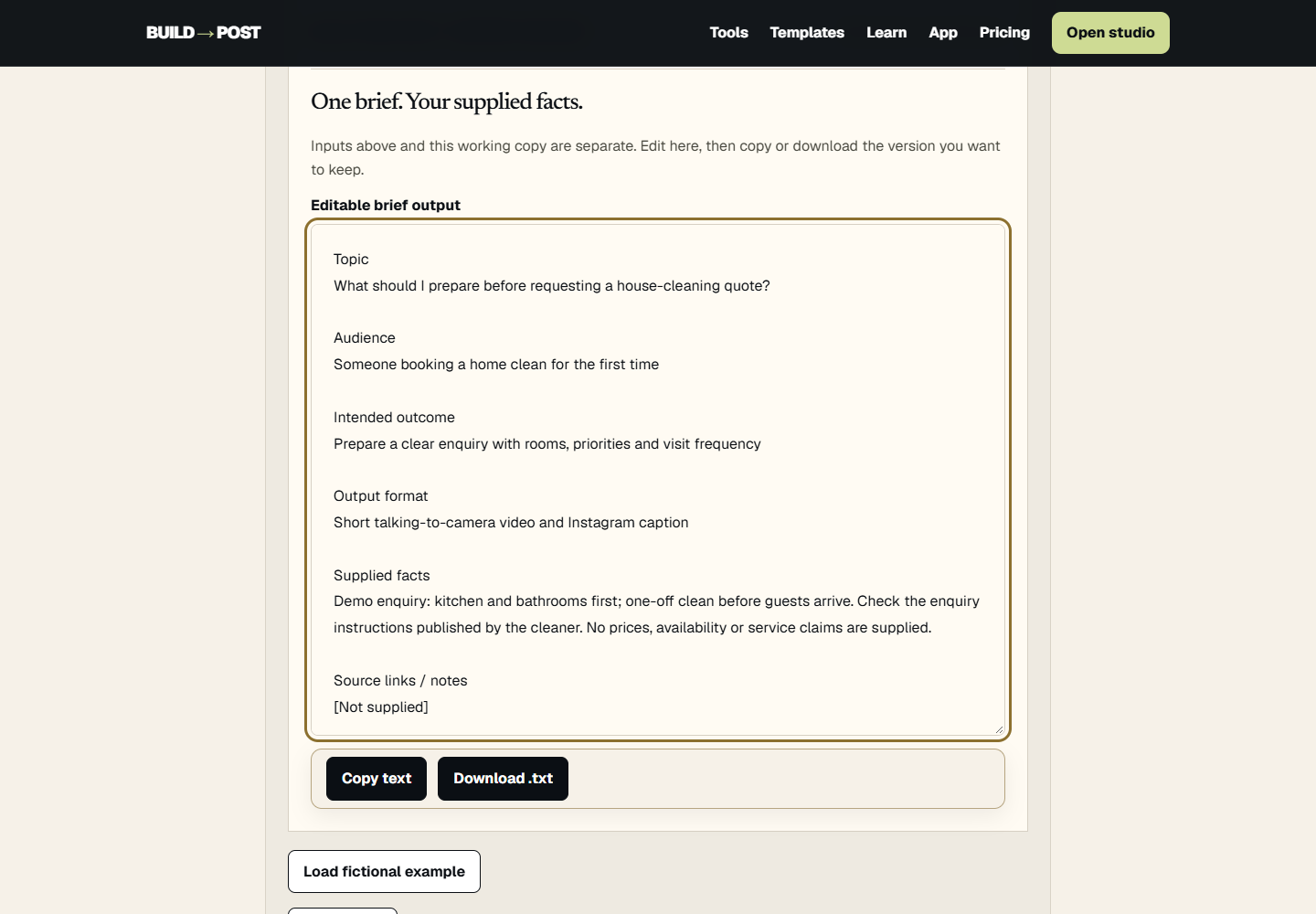
We write the spoken draft ourselves using the brief, then paste it into the teleprompter. This is a manual writing and transfer step, not an automatic AI script.
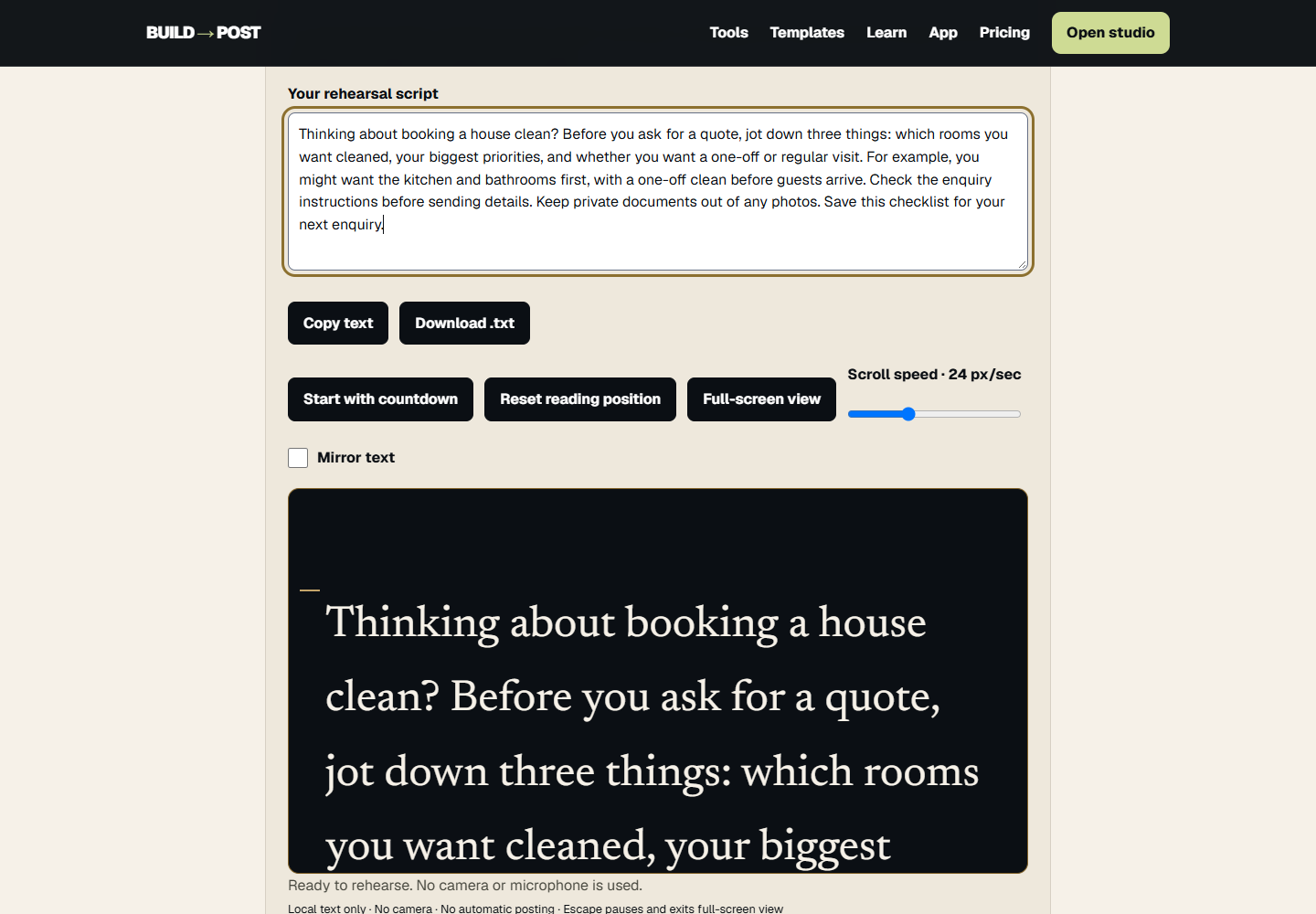
Thinking about booking a house clean? Before you ask for a quote, jot down three things: which rooms you want cleaned, your biggest priorities, and whether you want a one-off or regular visit. For example, you might want the kitchen and bathrooms first, with a one-off clean before guests arrive. Check the enquiry instructions before sending details. Keep private documents out of any photos. Save this checklist for your next enquiry.Paste your script and rehearse →
We open full-screen rehearsal, start the countdown and follow the reading ruler. This public tool uses no camera or microphone; recording a creator video happens separately in Studio.
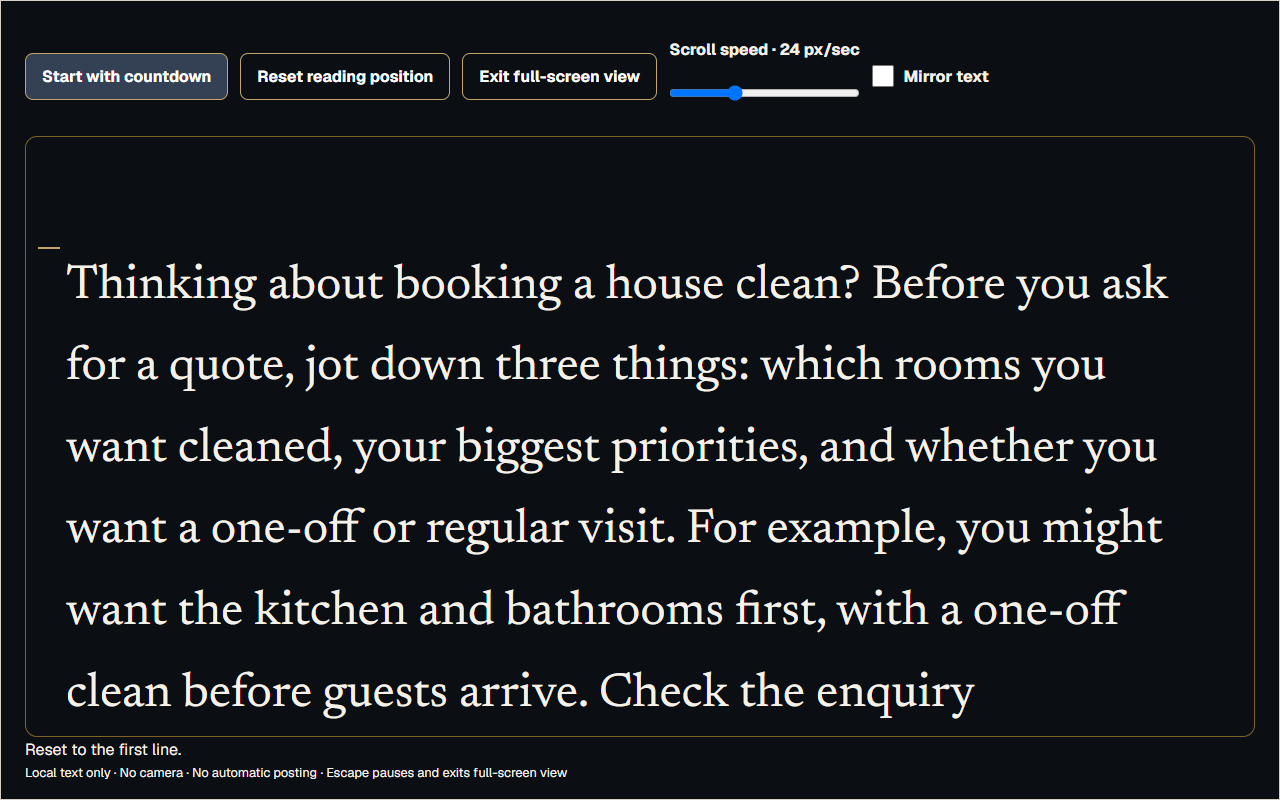
Silent browser capture: Start with countdown, then the script scrolls past the reading ruler. Captured at a reduced frame rate; this is not a camera recording.
Try camera-free rehearsal →We enter the same checklist facts in Caption Desk, compare its three structures and copy With context. Instagram is a planning label, not a connected publishing account.
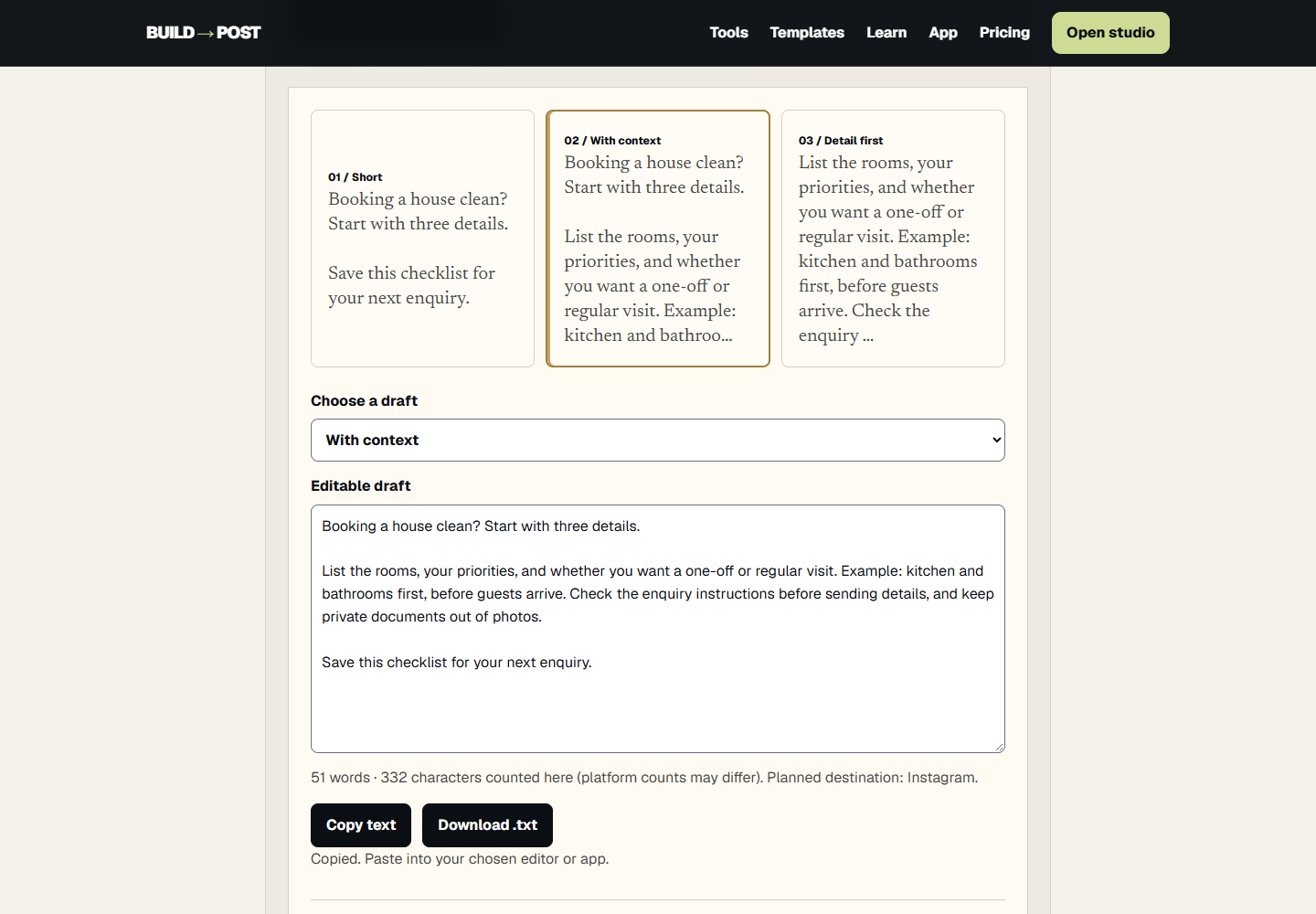
The actual chosen output
Booking a house clean? Start with three details. List the rooms, your priorities, and whether you want a one-off or regular visit. Example: kitchen and bathrooms first, before guests arrive. Check the enquiry instructions before sending details, and keep private documents out of photos. Save this checklist for your next enquiry.
Pair this with your own recorded video. Check the wording against your service, then upload manually on your chosen platform.
Download the script, caption and shot plan →01 / Prepare your words
Select a script or paste your own, adjust the reading pace, and rehearse before enabling the camera. This September capture shows an existing first-camper draft in the earlier interface.
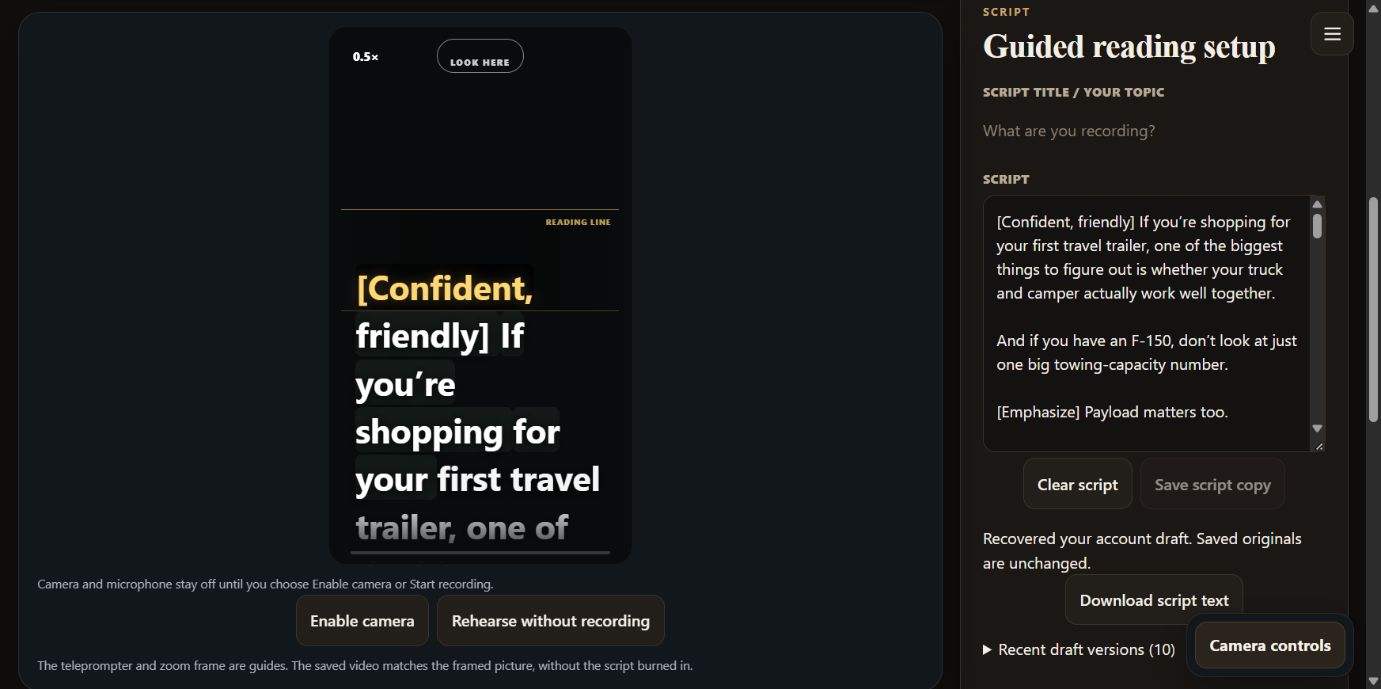
Start with a short script. Read it aloud once. Change the words that do not sound like you before recording.
Plan a recording block in Week. Name your recording and session, then choose Move to next recording to save the take and script locally. Review them in Gallery and download your keepers.
Open the weekly planner →02 / Prepare the handoff
Enter a title and post text. The app prepares destination-specific caption cards with copy buttons and links to the platform. You choose your saved video and complete the upload there.
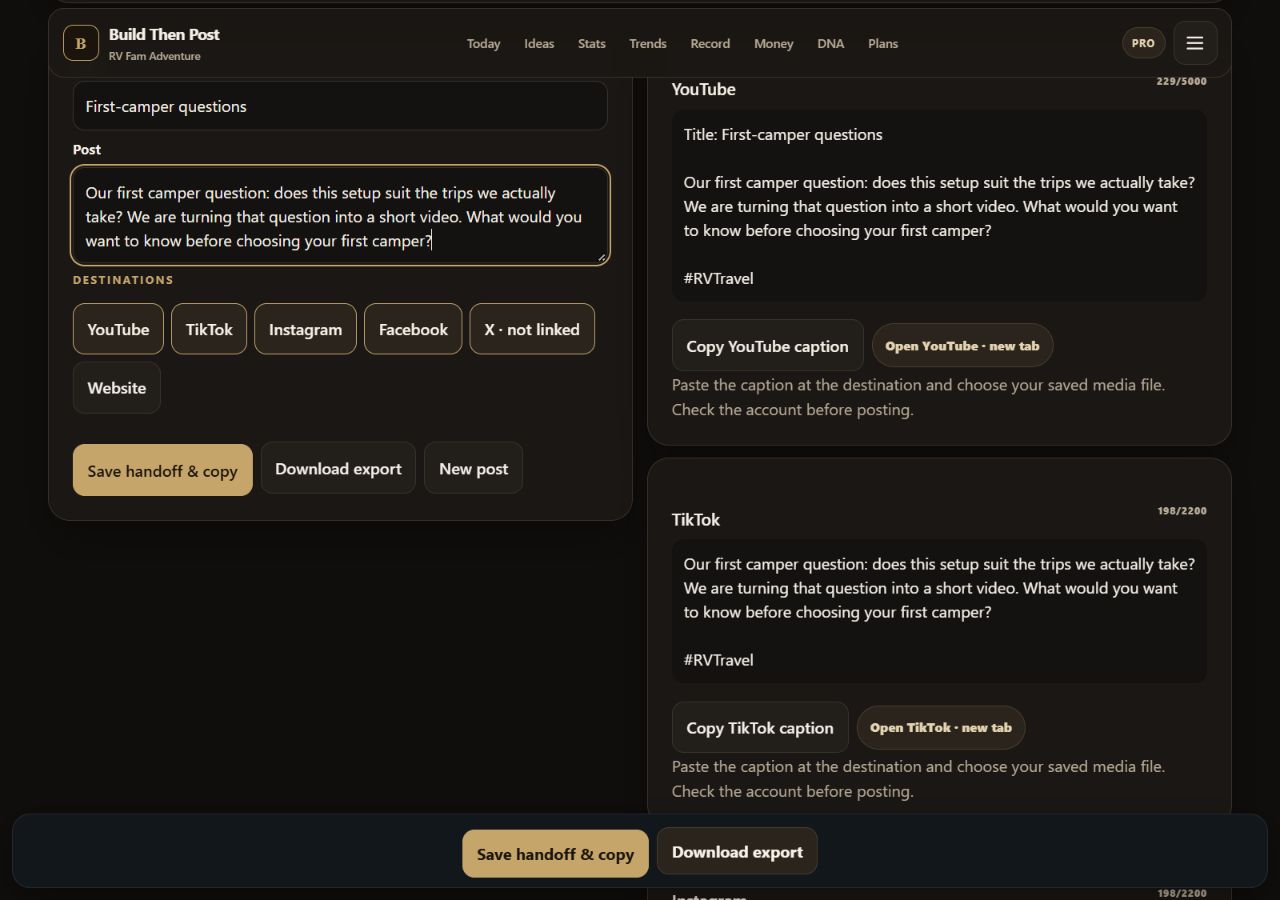
Choose something you could make today
These are adaptable working examples, not customer results. Download a pack with a script, shot list, caption and review checklist.
The starting point: “What do we wish we had asked before choosing our first camper?”
Before we picked a camper, we had one question: would it suit the trips we actually wanted to take? Start with the kind of trip you want to make. Then write down the questions you still need answered about your own setup. What would you want to know before choosing your first camper?
Our first camper question: does this setup suit the trips we actually take? We are turning that question into a short video. What would you want to know before choosing your first camper?
The Studio screenshot shows an existing owner draft. This shorter adaptation and the unsaved publishing preview are separate examples. Check any vehicle-specific advice with the appropriate manuals and a qualified professional.
Scenario: an illustrative repair shop explains how to prepare an enquiry. Replace this process with your business’s actual requirements before using it.
Want to make your repair enquiry easier to explain? Write down the item’s model and what you noticed when the problem started. A clear photo can help show what you mean. Before sending anything, check what the shop asks for and remove personal information from your photos. One clear question is a useful place to start.
A useful enquiry starts with a clear description. Check our contact instructions before sending your question, and keep personal details out of any photos.
Check your script’s timing · Build your shot list · Refine your caption
Pick the right starting point
You want to check timing, shape an opening, plan shots or prepare a caption without an account. Copy or download your work before leaving.
Choose a free toolYou want saved scripts, camera-free rehearsal, recording controls and a manual publishing kit in your account. Save each chosen recording file on your device.
Open your workspacePaid subscriptions are not on sale yet. See current access and future plans →
Captured from the signed-in live app on September 27, 2026. The existing Studio draft was not edited. The publishing sample was entered in an unsaved form; no account record or social post was created. No camera or microphone was enabled. The PRO badge is a development feature flag, not evidence of a purchased subscription.
Already creating?